Import MJCF
Learning Objectives
After completing this tutorial, you will have learned:
- How to import MJCF (MuJoCo) model files into Isaac Sim
- How to import using both GUI and Python scripting
- How to configure articulations after import
Getting Started
Prerequisites
- Complete the Quick Tutorials in Isaac Sim.
Estimated Time
Approximately 5-10 minutes.
Overview
In this tutorial, you will learn how to import MJCF (MuJoCo XML) model files into Isaac Sim and convert them to USD format. Two methods are covered: interactive GUI import and programmatic Python scripting.
GUI Import
-
Enable the MJCF Importer extension from Window > Extensions.
-
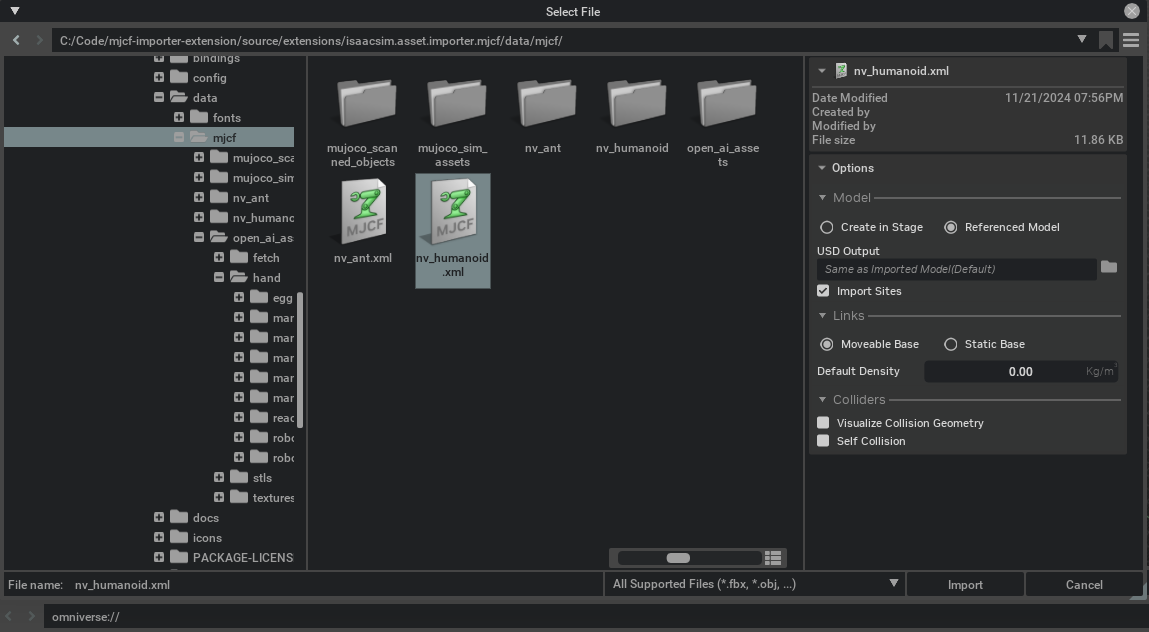
Open the file selection dialog via File > Import.
-
Navigate to the extension assets folder (
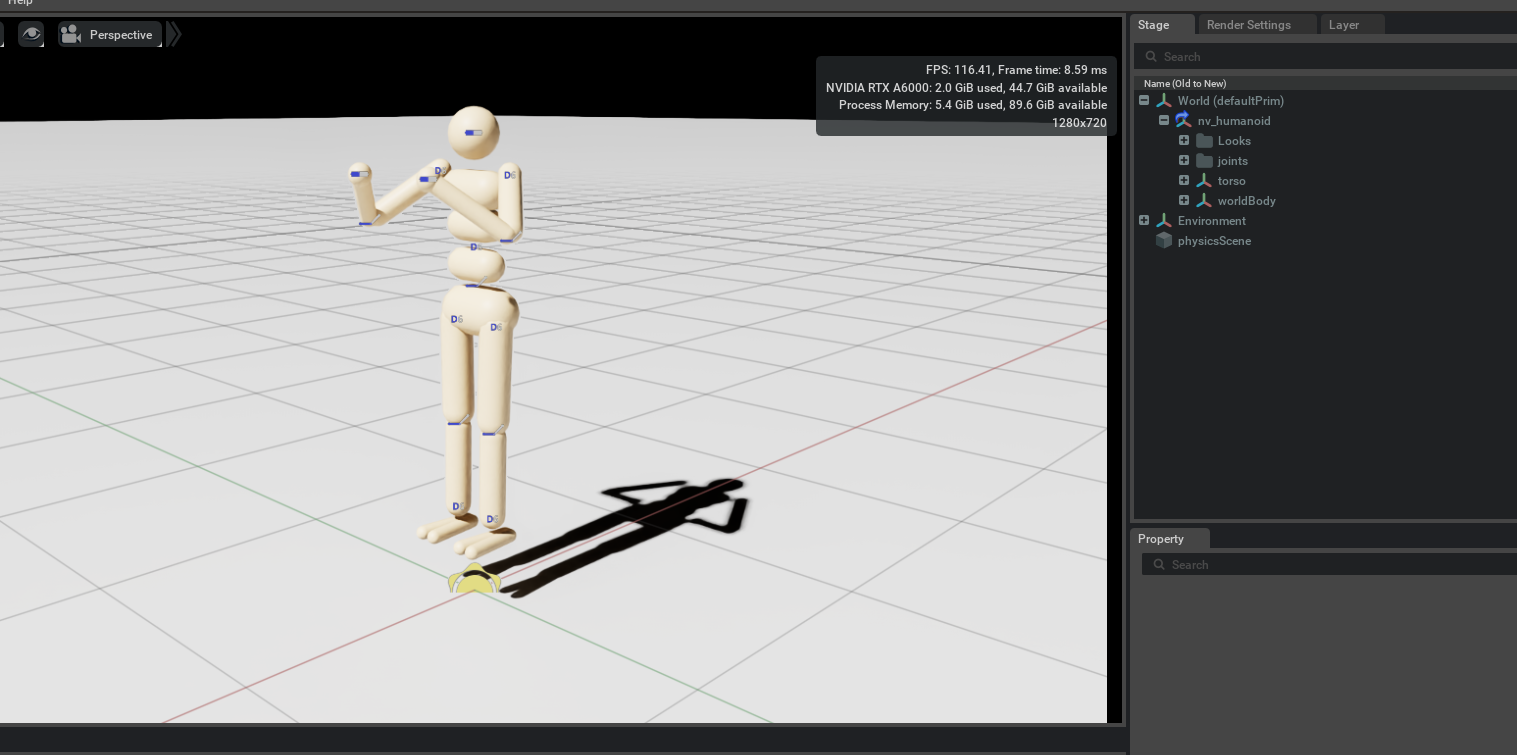
/data/mjcf) and select a file such asnv_humanoid.xml. -
Configure import settings and click Import.
Python Scripting Import
You can also import programmatically using the Script Editor (Window > Script Editor):
- Create import configuration with
MJCFCreateImportConfigcommand - Set options such as
fix_base()andmake_default_prim() - Create the asset with
MJCFCreateAssetcommand - Initialize the physics scene (gravity settings)
- Add lighting
Key Configuration Options
| Option | Description |
|---|---|
fix_base |
Whether to fix the robot base |
make_default_prim |
Whether to set as default prim |
Post-Import Configuration
- Imported robots are converted to articulations within the simulation
- Sensors, materials, and joint configurations can be modified after import
- Articulation stability can be tuned by referring to the stability guide
Summary
This tutorial covered the following topics:
- GUI import of MJCF files
- Python scripting for programmatic import
- Post-import articulation configuration
Next Steps
- Tutorial 4: ShapeNet Importer - Learn how to import 3D models from the ShapeNet database.