Export URDF
Learning Objectives
After completing this tutorial, you will have learned:
- How to export USD files to URDF format
- How to configure export options (mesh path, root prim path)
- How collision objects and visibility map to URDF
- The limitations of the exporter
- How to verify export results
Getting Started
Prerequisites
- Complete the Quick Tutorials in Isaac Sim.
Estimated Time
Approximately 10-20 minutes.
Overview
In this tutorial, you will learn how to use the USD to URDF Exporter in Isaac Sim to convert USD robot files to URDF format. You will also learn about collision object handling and exporter limitations.
Enabling the Exporter
-
Navigate to Windows > Extensions, search for "urdf", and enable the USD to URDF Exporter.
-
This adds a File > Export to URDF menu option.
-
Load the Franka robot (
/Isaac/Robots/FrankaRobotics/FrankaPanda/franka.usd) and export it.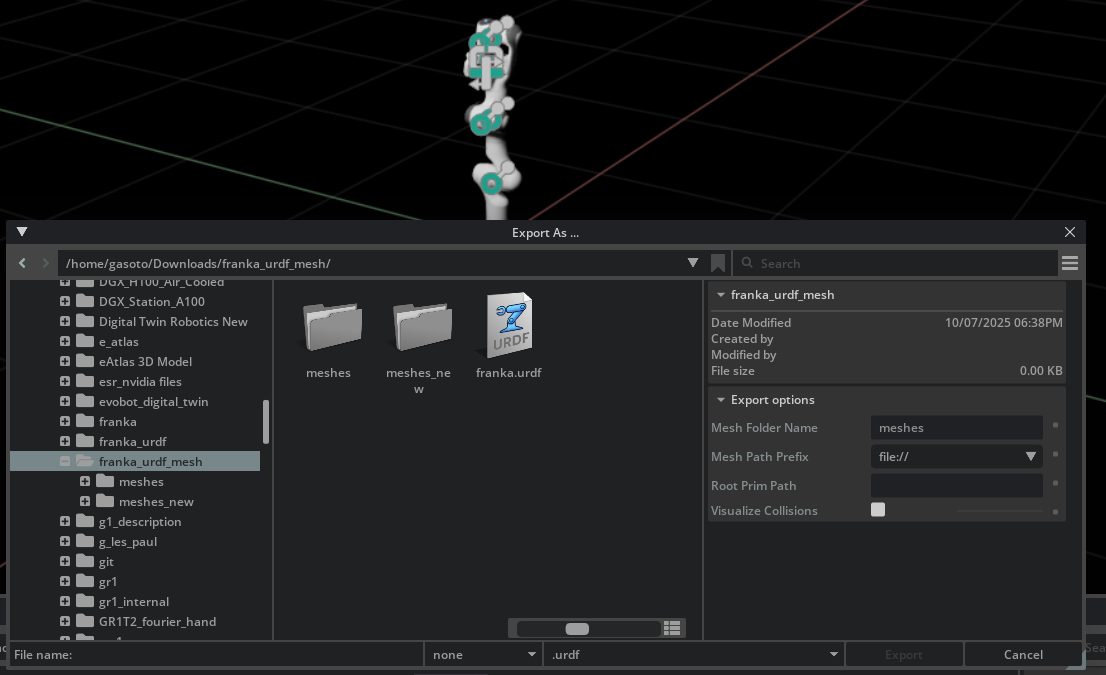
-
Verify that both a
.urdffile and ameshesdirectory are generated.
Export Options
Mesh Folder Name
Specifies the directory name for .obj files (default: "meshes").
Mesh Path Prefix
| Prefix | Description |
|---|---|
file:// |
Absolute paths |
package:// |
Package paths (ROS-compatible) |
./ |
Relative paths |
Root Prim Path
When a scene contains multiple robots, you can specify the prim for the target robot to export.
Collision Object Handling
USD geometry prims map to URDF visual and collision meshes:
- Prims with
PhysicsCollisionAPI→ collision meshes - Visible prims → visual meshes
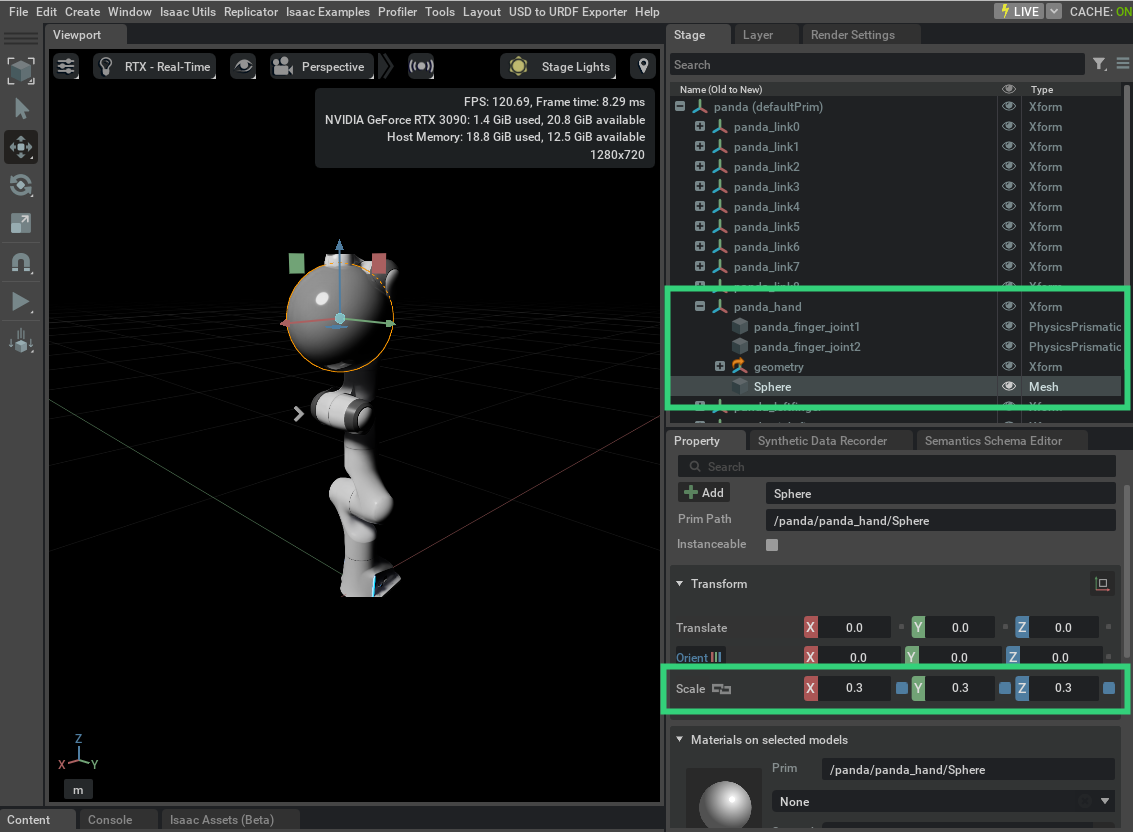
You can observe how the URDF output changes by applying collision APIs and toggling visibility.
Limitations
The exporter has the following constraints:
- Kinematic structures must form tree hierarchies
- Joint types are limited to
prismatic,revolute, andfixed - Link types are limited to
Xform - Sensors must be cameras or IMU sensors
- Geometry must be cubes, spheres, cylinders, or meshes
- Geometry prims must be leaf nodes
Verifying Export Results
You can verify exports by:
- Re-importing the exported URDF into Isaac Sim
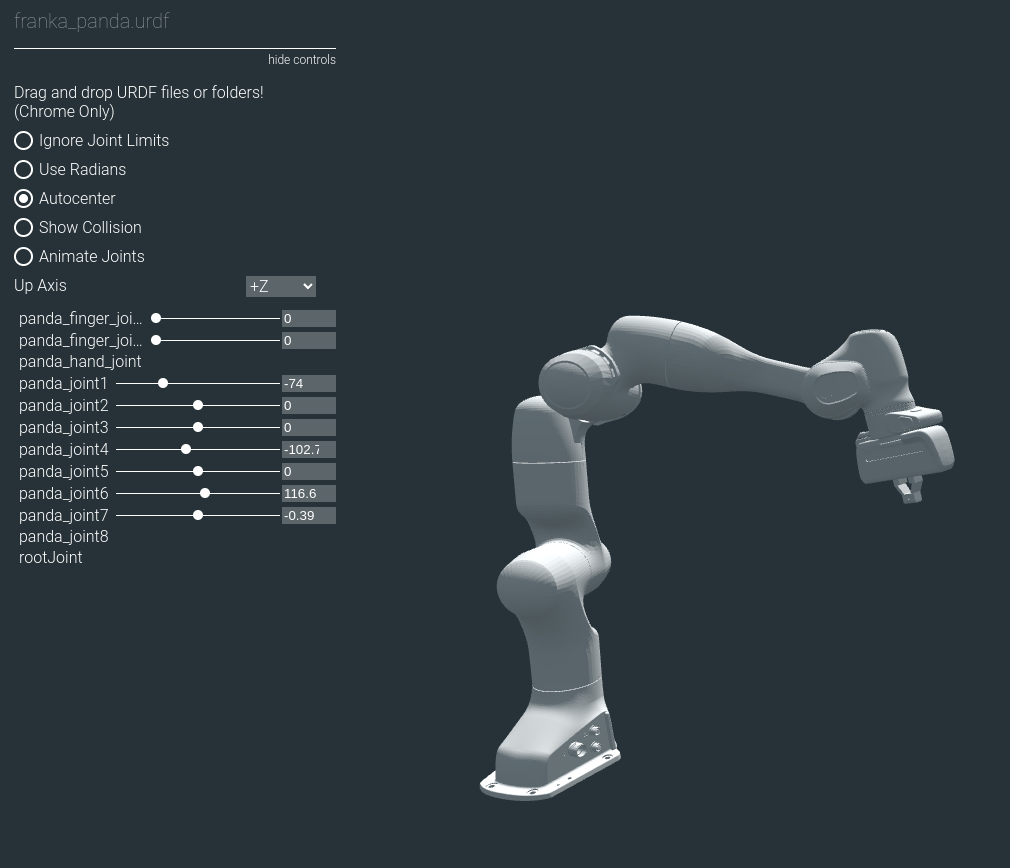
- Using an online URDF Viewer to visualize joint structures and collision geometry
Summary
This tutorial covered the following topics:
- Enabling and using the USD to URDF Exporter
- Configuring export options (mesh path, root prim path)
- Mapping collision objects and visibility to URDF
- Understanding exporter limitations
- Verifying export results
Next Steps
- Tutorial 3: Import MJCF - Learn how to import MuJoCo format files.